Using MySQL (or other ODBC connections) with Cognos

MySQL is quite possibly the most commonly used database today due to its free license tier making it a very low risk investment.  While it is not well geared towards the large queries of reporting and analysis, there may be a need to report directly from an existing MySQL database for any number of reasons.

The issue with MySQL in Cognos, is that it is only supported via general ODBC drivers.  The trick to remember with ODBC drivers is that even if the OS and Cognos installation are 64-bit, ODBC drivers must be 32-bit to work with Cognos.  Interestingly enough, Cognos Insight can use 64-bit drivers (probably due to it inheriting more from TM1 than Cognos proper).  Also note that ODBC drivers cannot run in Dynamic Query Mode.  This guide will step you through the process of setting up a MySQL data source specifically, but can be easily adapted to any ODBC driver.

Continue reading

Posted in Business Intelligence, Cognos, IBM | Tagged , , | 1 Comment

Raising the Bar with Mobile BI

(Enjoy a sneak peak of some dashboard screenshots as you read)

In recent years, mobile device sales have outshined those of personal computers. One survey reported that 95 percent of employees purchased a mobile device with the intent to use it for work. For many this has meant discovering the convenience of the smartphone, taking full advantage of the opportunity to integrate applications and conduct business in the palm of their hand. By 2015, 50% of devices used in business organizations will have gone mobile.

Newer and also larger than the smartphone is the tablet. These are a convenient replacement for a laptop when you’re on the go as they have foregone the traditional keyboard for an on screen version. However, they are still capable of many tasks you would find on your normal desktop or laptop.

________________________________________________________________

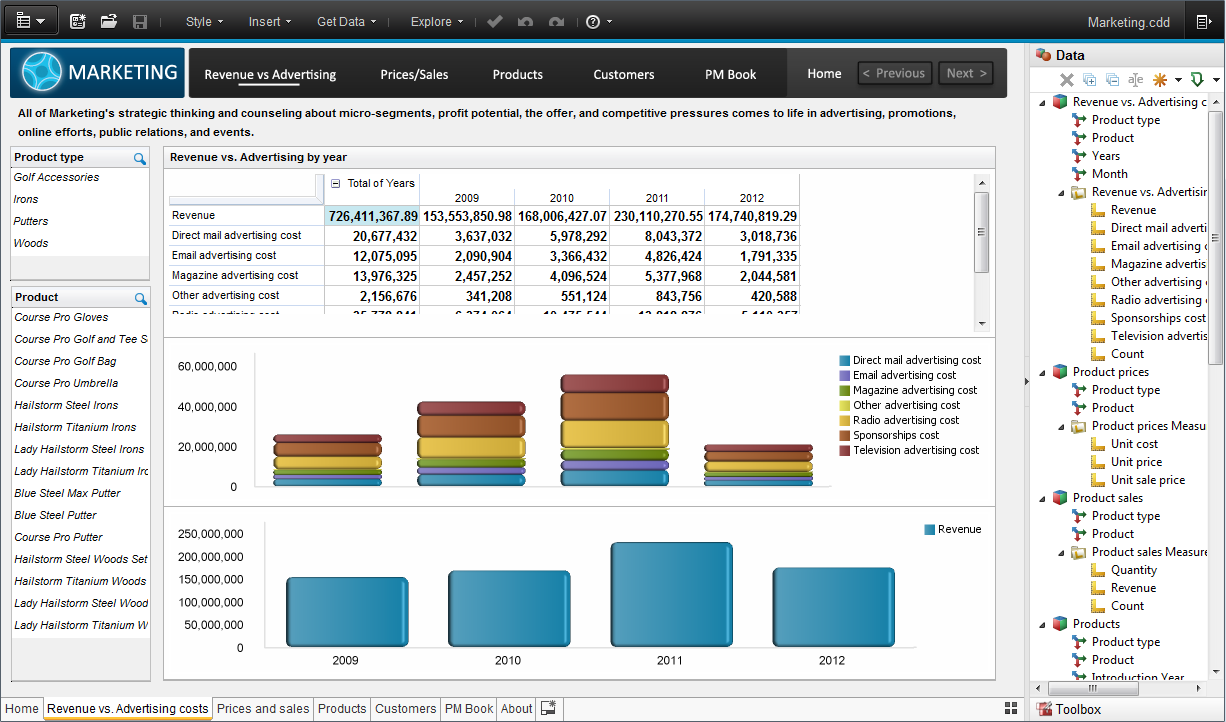
Example – Dashboard for Sales Executive Depicting Revenue Trends:

Image captured on IPad


Curious about implementation in the workforce?

  • Mobile BI has allowed retailers to make the best decisions for their businesses without the hassle of having to always be at their desk. With the tap of a finger they are able to access information on how well their marketing campaigns are doing, or review buying patterns – all while catching a cab to their 2:00 production meeting.
  • In the financial services industry, bankers are being enabled to make better decisions and analyze risk levels with greater accuracy.  Information is being integrated between silos creating ONE set of numbers increasing transparency.
  • Recent research has revealed that about 3 out of every 10 doctors are currently using IPads at work, making it easy to obtain important patient information at a moments notice.

Business Intelligence applications for tablets and cell phones are now an integral part of the mobile world. Many of the tools used by Datamensional consultants have mobile capability, and we are doing our part to make it easier than ever to keep your data close at hand. Call us for more information on optimizing your BI experience from your mobile device.

1-888-966-DATA (3282)

Additional Screenshots to convey potential for Mobile BI:

Dashboard Depicting Key Performance Indicators for the Cincinnati Zoo:

Image captured on IPad

Example of Business Analytics Delivered via Android Smartphone:

Image Captured on Android Smartphone


Posted in Business, Business Analytics, Business Intelligence, Productivity, Uncategorized | Tagged | Leave a comment

Big Data, What is it Exactly? Datamensional’s Take

Joseph A. di Paolantonio
Benjamin B. Goewey

Much of the current hype in Data Management & Analytics today is around the concept of Big Data, and Hadoop is at the center of the hype storm. The other two hot areas are Mobile & Elastic Cloud Computing. Cloud is central to both Big Data & Mobile implementations. This blog post will focus on Big Data, and how Datamensional has helped its customers meet this challenge with tools from Pentaho, Microsoft and IBM that work with Hadoop and other NoSQL data management systems.

In 2010 February, I suggested this approach to big data:

“Big data really isn’t about the amount of data (TB & PB & more) so much as it is about the volumetric flow and timeliness of the data streams.  It’s about how data management systems handle the various sources of data as well as the interweaving of those sources.  It means treating data management systems in the same way that we treat the Space Transportation System, as a very large, complex system.”

Many now flock to the definition of Big Data as three Vs. These Vs were debated hotly throughout 2011, on Twitter, blogs, and journals, with more Vs added. One good example can be found in R. Ray Wang’s article on Forbes:

http://www.forbes.com/sites/raywang/2012/02/27/mondays-musings-beyond-the-three-vs-of-big-data-viscosity-and-virality/

The three Vs on which everyone agrees are:

  • Volume – essentially, more data than you are accustomed to handling on your current computing platform, whether that’s Excel on your laptop, Oracle on a *nix box, or SAS on a mainframe
  • Velocity – from request a report from IT & wait a week or three, to near-real-time, [undefined, but not really] real-time and streaming data (a.k.a. Continuous Event Processing (CEP))
  • Variety – typically defined as structured (Entity Relationship Diagram (ERD) or schæma-on-write modeled data in your standard RDBMS), semi-structured(such as XML] or unstructured (with email, documents & tweets as common examples)

In the article cited above, Ray adds Viscosity and Virality (not to be confused with virility).  Viscosity can be seen as anything that impedes the interweaving or flow of data to create insights. Virality – how quickly an idea goes viral on the interwebs – or the rate at which ideas are dispersed across various Internet or Social Media sites (Twitter, YouTube, LinkedIn, Blogs, etc.).

Compare these five Vs to my definition of Big Data, given above; interweaving a heavy volumetric flow of multiple types of complex data from a variety of sources.

There are many sources of Big Data, both internal and external. To name just a few:
- Social Media
- Smartphones
- Weblogs
- Server & Network Logs
- Sensors
- The Internet of Things

Getting tons of TB to PB of data off of one data center into one cloud or vice-versa, or from one cloud to another, is logistically ridiculous. What’s in a cloud, generally stays in that cloud. Getting Analytics closer to the data is paramount for any practical application. Many vendors have recognized this, and over the past few years, the Analytic Database Management System (ADBMS), Hadoop and Cloud *aaS (* being software, infrastructure, platform, or data – as a Service) markets evolving at a pace not seen in decades, with Pentaho, SPSS, SAS, The R Statistical Language, and other analytical software being embedded in ADBMS or Cloud offerings from Teradata/Asterdata, EMC/Greenplum, HP/Vertica, SAP/Bobj/HANA/SybaseIQ, Oracle and IBM/Cognos/Netezza on the one hand, and AWS, MS Azure & Cloudera on the other.

Among others, IBM, Microsoft & Pentaho offer tools to improve Analytics out of Hadoop and other Big Data data sources. This is the most important for Datamensional. Let’s look at one customer case study, using Pentaho Hadoop Data-integration [PHD], Hadoop HDFS & Hive, and 50,000+ rows of data from one cell phone every minute. I had the honour of working with Ben & Gerrit of Datamensional on this project.

The Status Quo: Homegrown reporting & ETL solution written in Java and leveraging some open source tools and libraries to transform cell tower log files into CSV files for loading into an Oracle Datawarehouse with web-based administration & reporting.

The Business Need: Provide exploratory & in-depth Analytics capabilities to customer business analysts on a rich data set that was growing at a mind-boggling pace as Smartphone use opened new avenues for services such as location-based advertising and understanding cell phone user habits. The sample data showed 50,000 records describing a single mobile device usage over a one minute time period.

The Datamensional Solution: A Proof of Concept comparing the homegrown solution against Hadoop & Hive with the integrated Pentaho solution for Hadoop, including PHD and the pluggable architecture of the Pentaho BI Server. The PoC provided in-depth solutions in 6 areas:

  1. Installation, configuration and performance comparisons of using Pentaho Hadoop Data Integration.
  2. Demonstrating Pentaho’s Plug-in Architecture and use as a BI Platform
  3. Connecting Pentaho Analyzer to third party OLAP engines
  4. Demonstrating Pentaho Clustering & Parallel Processing capabilities
  5. Customizing the look & feel of the Pentaho User & Administration Consoles
  6. Automating the Installation Process including customizations

The Results: All points of the PoC were exceeded. While all six points are important for developing a Big Data solution or product using Pentaho, the first & fourth points, regarding PHD & Clustering are the most important for Big Data & Big Data Analytics. Other areas of the PoC showed the flexibility of the Pentaho Business Analytics platform for Reporting, OLAP,  Data Mining & Dashboards using Pentaho and other solutions, both from the Pentaho Community and as integrated by the Datamensional team.

One amazing result was that replacing the Hadoop libraries and native Hive JDBC with the Pentaho PHD versions improved response time on a simple report from so long that the customer killed the job rather than wait any longer with their homegrown solution, to less than 10 seconds with PHD. Of note, is that the PHD libraries replace the native Hadoop lib directory & files on the Hadoop name node and ALL data nodes. Clustering PDI by installing the lightweight Jetty server, Carte, on each node, parallelizes data integration and increases throughput for Hadoop & Hive. PDI provides many mechanisms to tune the performance of individual transformation steps and job entries, as well as clustering, parallelizing and partitioning for Transformations and Jobs.

The PHD libraries allow PDI and Hadoop to each bring their strengths to the data management challenges of moving, controlling, cleaning and pre-processing extreme volumetric flows of data. Using the native Hadoop libraries, a load of the sample data took over 5 hours.  This was reduced to 3 seconds using the PHD libraries and the PDI client Spoon to create transformation and orchestrate the job among the various clusters.

Additional Resources:

Wikipedia Definition

TDWI – The Three Vs of Big Data Analytics

O’Reilly Radar: What is Big Data?

Quora: What is a Good Definition of Big Data?

Datamensional Resources:

IBM on Big Data

Datamensional’s Big Data Integration Service

Pentaho Big Data Preview

Pentaho Community: Efficiency of using ETL for Hadoop vs. Code or PIG

Microsoft Case Study: MS BI and Hadoop

Posted in Big Data, Business Analytics, Data Integration, ETL, Pentaho, Pentaho Data Integration | Leave a comment

Xaction Basics – FTPing a file

Here is another little xaction that demonstrates the FTP capabilities of xactions. Just like the last one, make sure to save it in the workspace directory for Design Studio so that it displays properly when you try to edit it.

Open the ftp_prpt_report_w_parm.xaction file in Design Studio (Eclipse).

You will want to change the default values for each input.  Notice if you left it the way it was and ran it from PUC, you could change the default values to your FTP settings.  At first I tried to use an @ sign in the username from our Datamensional.com server, but the solution will not work with this.  It causes a problem because the output part of the .XACTION uses the @ sign to separate the username from the server name.  There may be a way to get around it through escape characters.

Go to your inputs in Design studio and change all the defaults for the following:

  • reportname
  • ftp_host
  • user
  • password
  • directory

Keep all others their default.  You will want to change the solution listed under Resources to one of your own reports as well

Save it to the solution directory in Design Studio.  In the BI Server, refresh the repository and double click on the .XACTION.  After completing successfully, you’ll see “Action Successful.” Log into the directory that you saved the FTP to, and it should be there.

Posted in BI Server, Pentaho | Leave a comment

Xaction Basics – Sending an Email

There are moments when working with the BI server that you will desire functionality that isn’t necessarily available through the server itself or any plugin that is currently out there.  In these situations, you will need xactions, which can be a little intimidating at first glance.  For this reason, we’ll provide some xactions that do some basic things for you to look at.  If you’d like to see a more in depth general introduction, check out this techcast by Mike Tarallo.

If you are coming from a fresh install with the sample database, you should have no problem running this .XACTION.  The only changes you need to make is to change the receiving email address, and the report being sent.  You should receive an email from the email you have set on your BI server as a default.

Make sure to put the file in the workspace when you open it through Pentaho Design Studio, otherwise it will not display any values.  The XML can still be edited this way, however.

After making your modification, save it to the solution directory from Design Studio (Eclipse) and go to PUC and refresh your repository.

Then double click on the solution.  You should see the following default message that shows the Action Sequence (.xaction) was successfully executed:

This is not all that pretty and actually could be another message.  It is simply saying that it was completed successfully and that long number is the unique ID for the document just created in the content repository.  At the end it shows what format it was.

You can execute this step using a URL into another application, another part of the suite, inside of PRD, or CDF.

Posted in BI Server, Business Intelligence, Pentaho | Leave a comment

Changing Pentaho’s Default Email Server to a Gmail Account

Since we use gmail for our company email, we found it to be a bit trickier to enter the information through Enterprise Console unless you update your password.  To get around this, we edited the server\biserver-ee\pentaho-solutions\system\smtp-email\email_config.xml file as shown below.  Make note to change it to your own email and password.


<?xml version=”1.0″ encoding=”UTF-8″?> 

<email-smtp>

<!– The values within <properties> are passed directly to the JavaMail API.

For a list of valid properties see http://java.sun.com/products/javamail/javadocs/index.html –>

<properties>

<!– This is the address of your SMTP email server for sending email. e.g. smtp.pentaho.org –>

<mail.smtp.host>smtp.gmail.com</mail.smtp.host>

<!–  This is the port of your SMTP email server. Usually this is 25. For GMail this is 587 –>

<mail.smtp.port>587</mail.smtp.port>

<!–  The transport for accessing the email server. Usually this is smtp. For GMail this is smtps –>

<mail.transport.protocol>smtp</mail.transport.protocol>

<!–  Usually this is ‘false’. For GMail it is ‘true’ –>

<mail.smtp.starttls.enable>true</mail.smtp.starttls.enable>

<!– Set to true if the email server requires the sender to authenticate –>

<mail.smtp.auth>true</mail.smtp.auth>

<!–  This is true if the email server requires an SSL connection. Usually ‘false’. For GMail this is ‘true’ –>

<mail.smtp.ssl>true</mail.smtp.ssl>

<!–  Output debug information from the JavaMail API –>

<mail.debug>false</mail.debug>

<!– For GMail this is ‘false’ –>

<mail.smtp.quitwait>false</mail.smtp.quitwait>

</properties>

<!– This is the address of your POP3 email server for receiving email. e.g. pop.pentaho.org –>

<!– It is currently not used –>

<mail.pop3/>

<!– This is the default ‘from’ address that emails from the Pentaho BI Platform will appear to come from e.g. joe.pentaho@pentaho.org –>

<mail.from.default>system@datamensional.com</mail.from.default>

<!– This is the user id used to connect to the email server for sending email

It is only required if email-authenticate is set to true

This is never sent or shown to anyone –>

<mail.userid>system@datamensional.com</mail.userid>

<!– This is the password used to connect to the email server for sending email

It is only required if email-authenticate is set to true

This is never sent or shown to anyone –>

<mail.password>password</mail.password>

</email-smtp>


In the Admin/Enterprise Console, it should look something like this:

default email address:  system@datamensional.com

User ID:  system@datamensional.com

SMTP Host:  smtp.gmail.com

SMTP Port:  587

SMTP Protocol:  smtp

Posted in Uncategorized | Leave a comment

Fusion Charts in Pentaho Report Designer

For those of you looking to add a little something extra to your Pentaho Report Designer reports, here are some steps to allow FusionCharts to be inserted directly into the report.  Of course, this is very format specific, and will only work with HTML.

Download, Setup, and Test on Pentaho Server

Begin by going to this link:

http://www.fusioncharts.com/free/download/

Find the FusionChartsFree.zip archive file.  Extract to your Pentaho install directory (ours was called pentahoSandbox):

C:/Program Files/pentahoSandbox/server/biserveree/tomcat/webapps/pentaho/FusionChartsFree/

http://localhost:8080/pentaho/FusionChartsFree

This puts it in the web directory so other Pentaho solutions can access it and it’s also protected by the same security under the Tomcat server.

Now you should test that you can run a Fusion Chart from this directory.  Go to this web address to test a Fusion Chart on Pentaho’s BI Server:

http://localhost:8080/pentaho/FusionChartsFree/Code/MyFirstChart/ChartJS.html

Your result should look like this:

Pentaho Data Integration (PDI) Transformation to create Fusion Data source

Fusion charts as well as most Adobe Flash based charts including Flex use XML as their data source.  The transformation needed allows you to create the properly formed XML document dynamically from any SQL data source.  We will use the sample database that ships with Pentaho.  Ultimately, we will link this transformation as a data source to PDI and it will dynamically create an XML file from the SQL input changes coming from PRD.

See the code in the .ktr file

  1. Table input: Create a query like the below when starting to create your transformation.  This will eventually be turned into an XML file that Fusion charts can read.  Use this SQL to start without the Where clause so you return results.  Add the where clause later with the question mark in a later step. 
  2. Select values: This step prepares some of the data as place holders for the XML document and changes some of the Uppercase to lowercase.
  3. Add XML from set: This creates a “set” XML tag and makes all the other columns to  attributes of this tag.
  4. Generate Rows: This generates the graph XML node as well as all of the attributes of that node.  These are static now, but you could potentially build this out and parameterize it so that the end-user could change various aspects of the chart.
  5. Doc Template: This is the same step as step 3.  This creates the basis for all the set nodes to attach to.  Right now it’s simply a one line tag of XML.  Fusion documents only have one graph tag anyway, and it’s always the highest level tag.
  6. Join Graph to Set: This step ultimately joins the two nodes together.  The set node is the child to the graph node.  Each set represents a value on the graph.  They are joined by the graph.  This currently is what a typical XML document would be.
  7. Text file output: This simply takes the XML and stores it as a file.  Another suggestion is to stream the XML file instead.  You may want to experiment with that.  I called my XML file something a little different so I could distinguish it from the other default data files.  I put it in the same directory for simplicity sake:
    1. C:\Program Files\pentaho\server\biserver-ee\tomcat\webapps\pentaho\FusionChartsFree\Code\MyFirstChart\AddXMLStepData
    2. Note to make the file extension .xml.
  8. Run the transformation to ensure you get data and then launch the ChartJS.html created previously to ensure that the Fusion chart reads the data.
  9. Get Variables: This step gets the variables that are set in the settings of the transformation.  This is how you would use them:
    1. Go to Edit -> Settings . . .  ->  Parameters (tab)
    2. Put in ParmProduct with a default value of ‘default’.
    3. Now add the Get Variables step and connect it to the input step.
    4. Name the field “Product” and then the parameter “ProductParm”  and make the type string.
    5. Edit the table the input Step.  Add this line underneath the “From” Statement in the Table input step: WHERE “PRODUCTS”.”PRODUCTCODE”  = ?
    6. Click  “replace variables in script”
    7. Select in the drop down “Get variables from Script” and select the “Get Variables” step.
    8. Test by running again.  You should get no errors, but you should have an empty data set since no product codes equal ‘default’

Create Pentaho Report Designer (PRD) Document and integrate with Fusion Charts.

  1. Open PRD
  2. Create new JDBC query.  This query will be used to populate values in a “Product” filter under Data Sets on the right hand side.  Set the data source to the SampleData and use this as your query.  Use this SQL:

    SELECT

    “CUSTOMER_W_TER”.”COUNTRY”,

    “ORDERFACT”.”TOTALPRICE”,

    “PRODUCTS”.”PRODUCTCODE”

    FROM

    “PRODUCTS” INNER JOIN “ORDERFACT” ON “PRODUCTS”.”PRODUCTCODE” = “ORDERFACT”.”PRODUCTCODE”

    INNER JOIN “CUSTOMER_W_TER” ON “ORDERFACT”.”CUSTOMERNUMBER” = “CUSTOMER_W_TER”.”CUSTOMERNUMBER”

  3.  Go to Parameters in the data pane and right click and then select add parameter.
  4. Call your new parameter ParmProduct and fill it out like so and click OK.
  5. Add a new data source by right clicking on the Data sets, and releasing on Pentaho Data Integration.
  6. Select the PDI transformation you had saved previously to create your XML.
  7. Select the table input as your data stream for your data.
  8. Now click “Edit Parameters.”
  9. Match the parameters on the far left side from PRD to PDI on the right like in the picture below:
  10. Click OK.  On the right side, select the PDI “query” you just created and right click and select “Select Query.”  This ensures your main document is using that.
  11. Drag COUNTRY and CL to the details band.
  12. It’s recommended you unhide the “No Data” band so you can better understand if a problem comes up that it’s due to you selecting no data.  Drag a label there and write “No Data”.
  13. Change the page setup to Landscape to better accommodate the size of the chart.
  14. Drag the Report Header band so the height is at least 400 pixels to allow space for the chart.
  15. Drag a label into the Report Header and expand it to the same size as the Report Header.
  16. Make sure you are clicked on your text-field or label you dragged to the canvas.
  17. Click on attributes.
  18. Go to “append-body” under the HTML header.  Click on the ellipse for value and put this script or similar as an absolute directory within your localhost or remote if you want to access this from another machine.  I recommend doing it this way because it gets confusing when you preview from PRD or the BI Server because it references different directories and thus relative directories might change.  Your code will look similar to the one from the Fusion charts.  If you want to include JavaScript libraries and make them accessible by everyone, I recommend putting your code in the master-report append-body attribute.<script language=”JavaScript” src=”http://localhost:8080/pentaho/FusionChartsFree/Code/FusionCharts/FusionCharts.js”></script></head><h2 align=”center”>Fusion Chart in PRD with PDI data source</h2><div id=”chartdiv” align=”center”>The chart will appear within this DIV. This text will be replaced by the chart.</div><script type=”text/javascript”>

    var myChart = new FusionCharts(“http://localhost:8080/pentaho/FusionChartsFree/Code/FusionCharts/FCF_Column3D.swf”, “myChartId”, “550″, “450″);

    myChart.setDataURL(“http://localhost:8080/pentaho/FusionChartsFree/Code/MyFirstChart/AddXMLStepData.xml”);

    myChart.render(“chartdiv”);

    </script>

  19. Add a Page Header if you wish.
  20. Click OK.
  21. Before previewing to see the Fusion chart, remember you can only use the HTML preview.  It will not show up any other way.  To do this, click on the big green play button at the top and then select HTML.
  22. Your finished product should look like this and you should be able to dynamically change it on the fly.

You can also preview after publishing to the BI Server and you should get the same result and be able to dynamically change the chart by selecting another value in the drop down list.


What it should look like:

Recommendations & Notes

  • Fusion charts will not work cross platform.  Relative paths are confusing when troubleshooting in PRD.  So that’s why I put the absolute address.  However I have noticed that when creating a new application folder the Fusion charts will not reference the application folder “pentaho.”  You should decide which folder you want to demo the fusion charts in and update the path to those Fusion charts accordingly and make sure the contents are there.   
  • Fusion charts are not supported officially by Pentaho Support though their implementation is common in CDF and on the BI Server.
  • CDF will soon have a built-in component for Fusion without needing an .xaction interface.
  • You can add more line detail by creating a sub report with another query that does not aggregate and link it to the primary parameters on the master report.
  • You can drag any other reporting elements to the canvas.
  • You can create new Flash charts on the fly by doing the following (This is definitely advanced, but it can work!):
  1. Create a new transformation in PDI.  Use the Get File Names step.
  2. Use it to read the names of the charts in the directory structure for the Fusion Charts on the Server.
  3. Have it flow to a dummy step.  Save it.
  4. Create a new data source in PRD and point it to the dummy step you just created.
  5. Create a new Parameter called “ChartType.”
  6. Use the new PDI data source as the source query for your ChartType.
  7. Go to Append-query of the text-field that contains our JavaScript.
  8. Go to formula.  The tricky part here is you’re going to use the formula functions to actually write the JavaScript string in the value column.
  9. Use the message notation or other scripting option to basically swap out the chart loading function.  In the report example, you’d want to swap out this part: FCF_Column3D.swf with the chart type parameter.
  10. Thus, your code should look something like this: “JavaScript String Value Beginning” + ${ChartType} + “JavaScript String Value End”
  • You can create additional inputs into PDI from PRD for the overall graph settings.  Currently, they are static as “Generate Rows” steps for the simplicity of this demo.  Thus, the user could have more control over how their chart looked.
Posted in Pentaho Report Designer, Reporting | 5 Comments

Using XMLA in Pentaho Reporting

Anyone who has ever actually attempted it may have noticed that Pentaho Report Designer does not natively accept XMLA as a datasource.  It is still possible, and this little guide will step you through how to do this.  We used MSSQL 2008R2 with the standard Adventure Works example data loaded.  We used the Pentaho BI Suite EE 3.8, but the directions should remain the same for CE and more recent releases.

UPDATE: As Thomas Morgner pointed out, you don’t need to use PDI to bridge the gap between PRD and XMLA, you can use OLAP4J.  The PDI method can be generalized for almost any type of datasource and perform elaborate preprocessing as needed, so keep it in mind anyways.

Set up MS OLAP XMLA Server as SOAP Web Service

  1. First, copy all of the contents of the C:\Program Files\Microsoft SQL Server\MSAS10_50.MSSQLSERVER\OLAP\bin\isapi directory into the C:\inetpub\wwwroot\olap directory.  Create this if necessary.
  2. Open the Server Manager by right clicking on Start->Computer and selecting Manage.  On the far left of this window, there should be the Console Tree. This can be opened by clicking on the gray button near the top of the window if it is not there.
  3. Expand Roles by clicking on the plus sign next to it.  Below it should now be the Web Server (IIS) option.  If it is not there, it can be added by right clicking on roles and selecting Add Roles, and then clicking on the Web Server (IIS) checkbox when it shows up.
  4. Either way, expand the Web Server (IIS) option and click on the Internet Information Services option below it.  There will now be a second selection tree next to it labeled Connections.
  5. Expand the option that matches the name of the server, right click on Application Pools option below it, and select the add application pools option.  Set the name in the window that comes up to OLAP, and make the Managed Pipeline mode Classic.
  6. Back on the Connections tree, expand the sites option. Next, expand the Default Web Sites Option below it, and then click on the OLAP option.  Of the icons that appear in the middle, double click on the Handler Mappings option.
  7. Right click on any of the entries in the list and select the Add Script option.  In the window that pops up: under Request Path enter *.dll, under Executable enter C:\inetpub\wwwroot\olap\msmdpump.dll, and under Name enter OLAP.
  8. Back in the Connections Tree, click back on OLAP to return to the previous screen of icons.  This time double click on the Authentication option, and make sure that the only entry in the list that is marked as enabled is the first one, Anonymous Authentication.  This will allow access to the connection without having to add extra authentication data to the query (it still requires authentication to access the server data).
  9. Once all this is completed, it can be checked for response by going to the address of the dll, such as http://localhost/olap/msmdpump.dll which will give a SOAP response error.
  10. It can also be tested through the SQL Management Studio by entering the address as the server name when connecting to a server.  All of the same options will be available as if accessing the server directly.


Connecting Microsoft OLAP to Pentaho Data Integration (KETTLE)

  1. Open Pentaho Data Integration (PDI).
  2. Go to File –> New Transformation
  3. Click on the “Design” Tab if not currently selected.
  4. Now look for the OLAP step.
    1. One way to do this is to browse under the folder “Input” on the left and find the “OLAP Input” or alternatively click in the search box at the top and type in “OLAP Input”
    2. Drag the step to the right and side onto the canvas.
  5. Double click on the OLAP Input Step.
  6. FIll in the below.  We have created anonymous login for simplification of this POC.  We recommend that set up the security appropriately in production.  We’ve also included a sample MDX query that should return 50 lines for testing purposes.MDX Query:
SELECT{[Measures].[Internet Sales Amount]}

ON 0,

[Date].[Calendar Year].[Calendar Year].MEMBERS

*

TOPCOUNT(

[Product].[Product].[Product].MEMBERS

,10, [Measures].[Internet Sales Amount])

ON 1

FROM [Adventure Works]

Configure OLAP input:

  1. Now do a search for “Text file output” on the left or browse for it under the output folder.
  2. Drag it onto the the canvas on the right.
  3. Click on your newly named OLAP Input called MSOLAP now and hold down the shift key.
  4. Drag an arrow while still holding left click and shift and connect it to the Text File output step and release the Shift and left click button.
  5. Double click the “Text file output” and set it to a local file system like: C:\Users\Administrator\Documents\MSOLAP Output
  6. Go to File –> Save As and save your transformation as MSOLAP.  Click the green “Run” button that looks like a play button.
  7. You should have a successfully exported data from MSOLAP to a text file (you’ll know if you don’t see any error messages and it says Finished! at the bottom).

Using Pentaho Report Designer (PRD) to report from Microsoft OLAP

  1. Open Pentaho Report Designer
  2. Click on the “Data” tab on the right.
  3. Right click on “Data Sets” on the right.
  4. Go to Pentaho Data Integration.
  5. Browse for MSOLAP.ktr and click Open.
  6. In the name field, call it “MSOLAP.”
  7. Select the MSOLAP step.
  8. Click Preview to verify that it will work.
  9. Click OK.  You should see three columns under Data sets under MS OLAP as a data source.  They are: Column0, Column1, [Internet Sales Amount].
  10. Drag each column on the “Details” band of the report.
  11. Now go back to Pentaho Data Integration and open MSOLAP.ktr from the last section.
  12. Delete the text output step.  Find the dummy step on the left and drag it to the canvas and connect them with a hop as shown in the picture:
  13. Go back to PRD.  Click on the preview button.  It looks like a giant eyeball in the top left hand side.
  14. If you see no errors and about 2 pages of detail data (and 50 lines of data), you have successfully queried Microsoft OLAP from Pentaho report designer.
  15. If you’d like to publish this to the BI Server, make sure that the PDI transformation file (.ktr) is accessible by the BI Server to use in the transformation whether by file system or stored in the PDI repository.


Posted in Analysis Services (SSAS), Microsoft SQL Server, OLAP, Pentaho Data Integration, Pentaho Report Designer | Tagged , | 2 Comments

Installing and configuring phpCAS

Since CAS is capable of integrating applications made in many different languages, you may want to take the time to get everything you can authenticating through it.  Every different language needs a separate client though, which needs to be installed and configured.  The official client for PHP is phpCAS.  The instructions I have here were originally done in 3.4.8 of CAS and 1.2.2 of phpCAS on the 11.04 version of Ubuntu.  If you’re using a different flavor of linux the commands may differ slightly, and if you’re using Windows, all of the example directories and commands will probably be different.  I will make notes where applicable.

Requirements:

  • A CAS server accessible through https.  It may be possible to get phpCAS to work without it, but it is safer and probably easier just to set up the https.
  • A webserver such as Apache, but any that will be capable of running PHP will do.
  • PHP5 with cURL installed on the machine.

Directions:

  1. The easiest way to install is through PEAR with the command “pear install  http://downloads.jasig.org/cas-clients/php/current.tgz”.  If PEAR is not already installed, it will tell you the command needed to install it.  If on Windows or a flavor of linux that does not provide a command to install PEAR, a manual install would probably be easier.  Just download from the link in the command above and extract somewhere logical (if you’re on Windows, you’ll need something like 7zip to open the .tgz) and add the include_path to your php.ini file.
  2. Go to the directory web pages are served from for that server (/var/www/) and copy config.php and example_simple.php from the examples directory provided with phpCAS’s documentation (/usr/share/php/doc/CAS/docs/examples).  Other examples can be copied if desired, but this is all that is necessary to test the connection.
  3. Modify Config.php to reflect the setup of the machine it is install on.  This file is included in all of the example files, so you should only need to change this once.  For a typical machine, the following changes were made:
    • $phpcas_path = ‘/usr/share/php’;
    • $cas_host = ‘localhost’;
    • $cas_context = ‘/cas-server-webapp-3.4.8’;
    • $cas_port = 8443;
  4. In a web browser, go to http://localhost/example_simple.php to test the server. It should redirect you to the CAS login page and then return you once logged in.  If you were already logged in through another app, it will automatically take you to the requested page.

While it may not seem like much as it is, the examples included with phpCAS will give you a good basis for using this client with your own PHP applications.  Do keep in mind that Single Sign On with CAS does not mean Single Sign Off, so always log out of your applications separately.  Also remember that Authentication and Authorization are separate concepts and CAS will only decide if a valid username and password were provided.  It is up to your application to determine if that username should have access.

Posted in Uncategorized | Tagged , | Leave a comment

Setting Up Logging Tables for PDI both Locally and on Server

When running an ETL in Pentaho Data Integration (Kettle), logging is normally done in a log file on the local system.  When running an ETL through Carte or the BI server, it will add the information to their own separate local log file.  These directions will allow the log information to be placed in a centralized database, keeping them all visible in one place, and also enabling PDI’s powerful performance monitoring.  This was originally created using Pentaho 3.8 and an Oracle 11g database.

Find the kettle.properties file

You’ll want to modify your kettle.properties file which is in the user folder of both Linux and Windows.   Spoon, Carte, and the BI Server will all look in the same place.  Find your  kettle.properties in these locations depending on your OS:

  • Windows:  C:\<User>\.kettle\kettle.properties
  • Linux: /home/<User>/.kettle/kettle.properties

The .kettle folder might be hidden.   Open with a great Text Editor like Notepad++

Setting up the connections to your Database

Ensure that you have full access to do inserts and create tables.  It’s recommended you set up your connections on your BI Server and/or Carte as JNDI connections.  Ensure you have the proper JDBC drivers locally as well as on the servers.

Make sure that they have the same connection name.   See the directions on how to setup a local JNDI connection in Spoon.  You could potentially just store the connection information within the Spoon job as well and not setup Server based connections and avoid JNDI altogether.  Though that would make it more difficult to pool connections and switch from Development and then production environments.

Adding the Variables:

Because of a bug in Pentaho, you should not fill in any variable related to Schema, especially if it’s implied what the default schema is.  Add the following to your kettle.properties on both your server and local machine you use Spoon on:

KETTLE_TRANS_PERFORMANCE_LOG_TABLE=trans_performance
KETTLE_CHANNEL_LOG_DB=OracleDB_Connection
KETTLE_JOB_LOG_DB=OracleDB_Connection
KETTLE_LOG_SIZE_LIMIT=
KETTLE_TRANS_LOG_TABLE=trans
KETTLE_TRANS_ROWSET_SIZE=0
KETTLE_TRANS_PERFORMANCE_LOG_DB=OracleDB_Connection
KETTLE_MAX_LOG_TIMEOUT_IN_MINUTES=10
KETTLE_EMPTY_STRING_DIFFERS_FROM_NULL=N
KETTLE_JOB_LOG_TABLE=job
KETTLE_JOBENTRY_LOG_DB=OracleDB_Connection
KETTLE_MAX_LOG_SIZE_IN_LINES=10000
KETTLE_CHANNEL_LOG_TABLE=channel
KETTLE_TRANS_LOG_DB=OracleDB_Connection
KETTLE_JOBENTRY_LOG_TABLE=job_entry
KETTLE_STEP_LOG_DB=OracleDB_Connection
KETTLE_STEP_LOG_TABLE=step
KETTLE_STEP_PERFORMANCE_SNAPSHOT_LIMIT=0

Testing Logging to Database on Spoon

Save your file locally first in on the specified .kettle folder depending on your OS.  Make sure you shut down Spoon if it’s not shut down already.  Then reboot the application.

Check to see that your Kettle.properites file was properly loaded.  Go  to Edit  Edit the Kettle Propreties File.  You should see variable names on the left correspond to the values on the right you just edited in the file.  If you don’t see any values filled out, you’ve got your file in the wrong place.  The picture below actually shows a file with empty log variables.   You could optionally fill in the values here or go back to your file.  Either way, you’ll have to restart Spoon after making your modifications.

Set up your Jobs and Transformations for Logging

Next, open a Job you want to log into your logging tables.   Go to Edit and then Settings.  Click on the logging tab.  There are three sections each representing a different logging table for jobs.  Make sure for each section all the appropriate fields are selected and that you fill out all the appropriate environment variables you defined in the kettle.properties file.  Most people will pick all of them.  If you haven’t done so already, click on the SQL button.  It will create all necessary tables for all sections.

Now open a transformation, and go through exactly the same motions as a job.  Notice there 4 sections instead of three.  Make sure everything is checked and that all tables are created.

Moving your Logging to Carte or BI Server

This assumes that you have created a JNDI connection in Spoon with the same name as the connections on your server.  Also, you’ve verified the connections work and have all the appropriate database drivers.

Make sure you move the kettle.properties file you’ve already configured locally to the server in the appropriate user folder and the .kettle folder as illustrated above.  You’ll have to shutdown and restart the server since you are adding new environment variables to the server instance.

Now that everything is configured locally, on the sever and  we’ve made the appropriate changes to the solution files, we can move the solutions to the server.  Simply move them to Carte or for the BI Server, move the solution files with corresponding XACTIONs that execute the solution files.  You’ll have to refresh the repository as necessary.

Execute the solutions on the server.  All logging should go to the exact same place locally as well as remotely.

Hot Tip:

Make a template for both Job and Transformation files with all the appropriate logging configuration setup.  This way you don’t have to make them over and over again.  If you have one job executing other jobs, it will pick up the logging of the children jobs.  If executed alone, it will not.  The master job will not pick up the transformation logging unless specified in the file itself.

Extra Hot Tip: Kinda a big deal if your tables begin to lock:

Since PDI is designed to be platform agnostic, the logging table mechanism attempts to find a happy medium between all databases.  However, there are some database specific things up you must do especially if you’re processing a lot of data to avoid concurrency issues and you may get a table lock.  We ran into this problem with Oracle 11g when processing about 8000 rows/s through PDI.   Matt Casters, the founder of the Kettle project, has a Pentaho Forum post that shows you how get around the concurrency table lock issue using both Oracle and MySQL on this Pentaho Forum post.

Posted in Data Integration, Pentaho, Pentaho Data Integration | 1 Comment